

Introduction
Here's how to complete a shift record in Gather, on site, in six simple steps.
Open your project and tap the plus button. The record saves on your phone even when you're offline.
Step 1: Shift details
First, enter the shift start time and duration. Then choose the access point, weather station, and assignee. Gather calculates the remaining details automatically.
Step 2: Access
Next, choose the relevant access type and check the information preloaded from the plan. If the actual times are different, explain and categorise the reason.
Step 3: Resources
Review the planned resources. Update who and what was on site, where they worked, and for how long. Swipe a row to edit, copy, or remove it.
Step 4: Work log
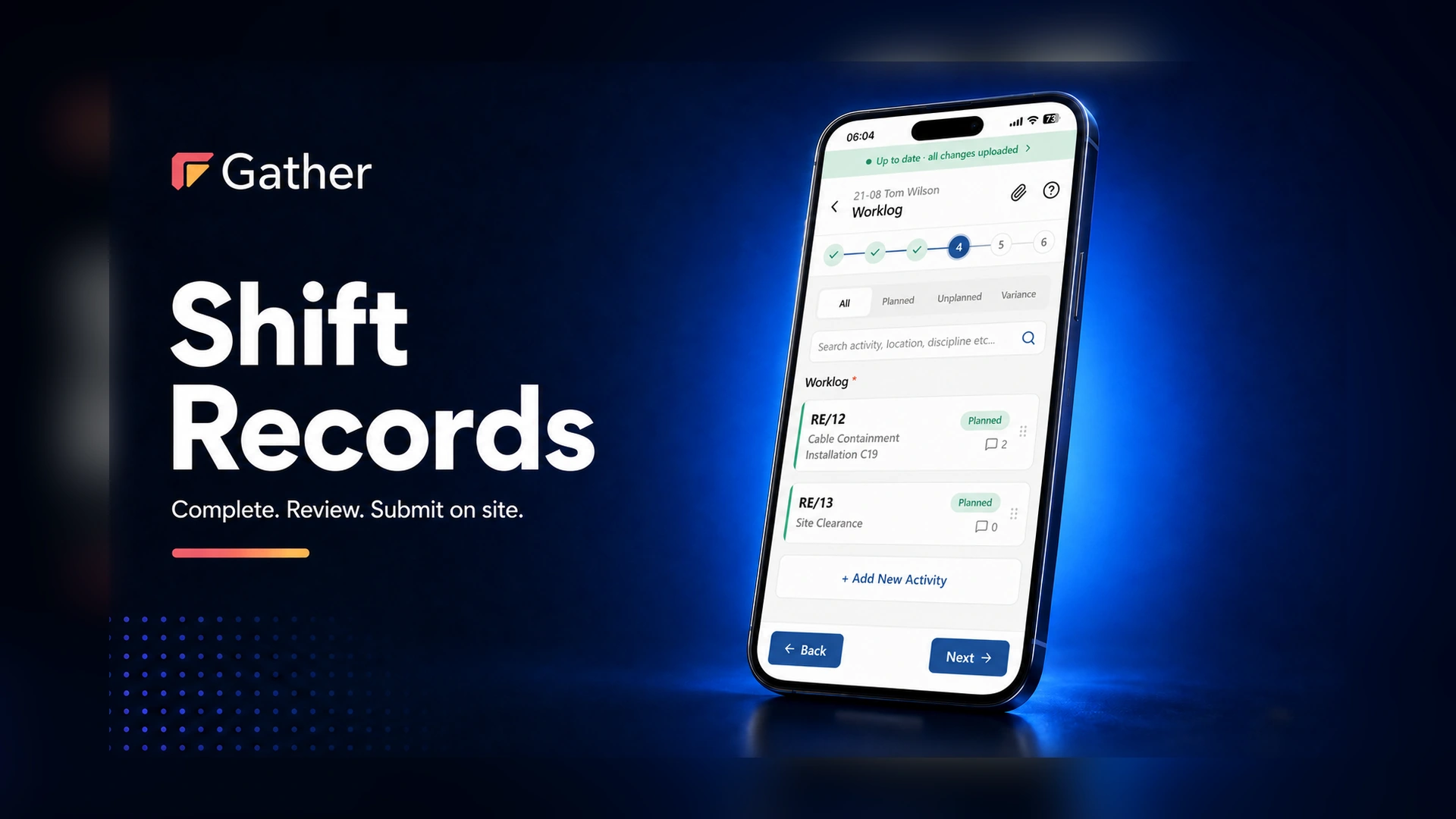
In the work log, confirm the progress achieved and record any unplanned activity under the correct contract category. Add photos and notes where useful.
Step 5: Shift comments
Add shift comments under health and safety, environmental, delivery notes, or fatigue. Delivery notes can include reference numbers and photos. Speech-to-text makes adding notes quick and easy.
Step 6: Allocation
Finally, allocate each person and machine across the relevant jobs. Explain any non-productive time before saving. You can select multiple rows and allocate them together.
Submit
Check that all six steps are complete, then submit. This locks the record and sends it for review. If you're offline, the record will upload when your connection returns.
One shift, one record, signed off before you leave site.


.webp)