
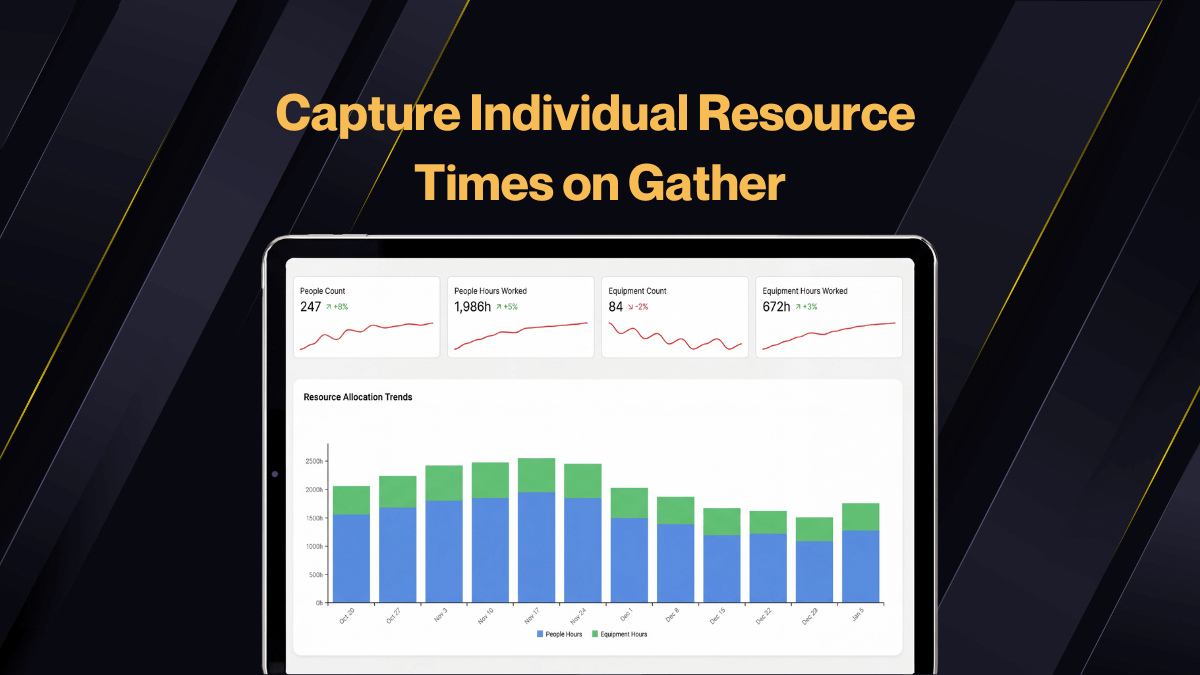

Hi, it's Will from Gather. Today, I'm going to talk to you for our new update, which covers resource time.
Traditionally, you fill in your shift timings and the duration of your shift. If we go look at our resource, all our resource would have the same duration. So everybody on the 10 hour shift, we can put their travel time, which may be different, independent to them, but ultimately they're all doing a 10 hour shift.
0:14Introduction
Hi, it's Will from Gather. Today, I'm going to talk to you about our new update, which covers resource time.
Traditionally, you fill in your shift timings and the duration of your shift. If we go look at our resource, all our resource would have the same duration. So everybody on a 10 hour shift, we can put their travel time, which may be different, independent to them, but ultimately they're all doing a 10 hour shift.
Feature update
We realise, based on your feedback, that doesn't quite work to reflect reality. So a new update that was launched in January changes that.
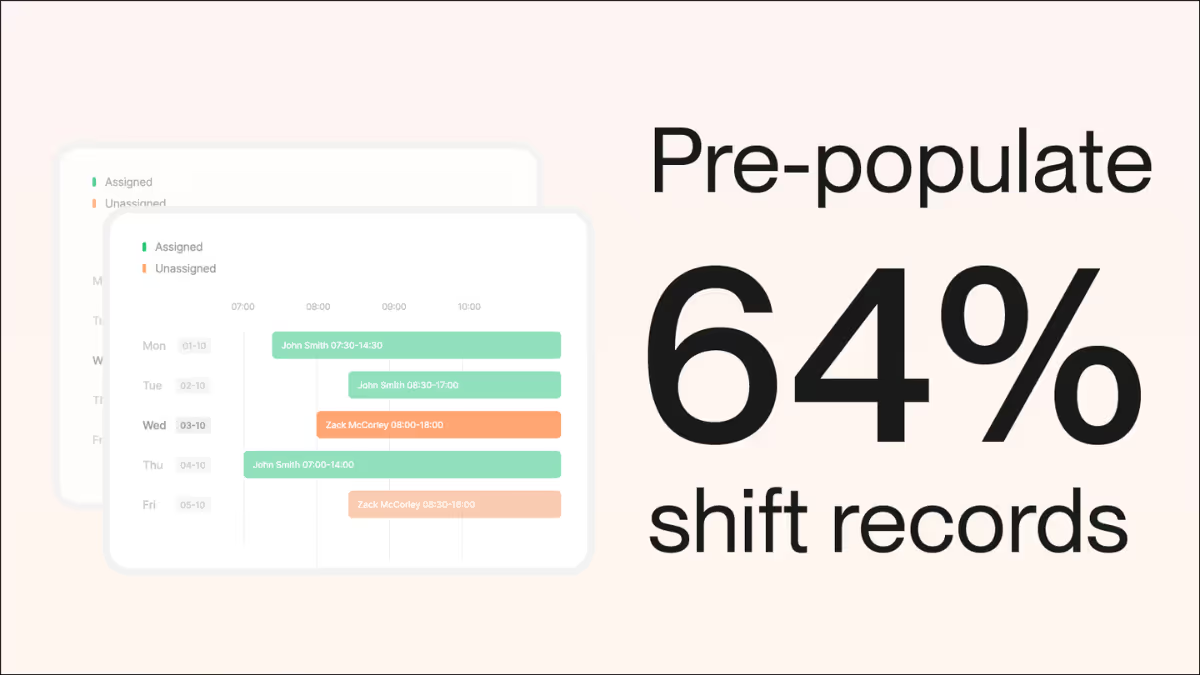
We go to a new shift record. Let's have a look at the shift timing. It's still a 10 hour shift, ten o'clock till eight. If we fast forward to the resource times, we can start to now add in some more information. We've got the start time and end time for the individual.
Unique start and end time
For example, Emilia here, we can actually say her shift started maybe a little bit earlier, because she's the supervisor, and she maybe even finished a little bit later as well. So we can change that to, let's say, half past as well. That can be different to her team. You can see her team here 10 till eight, and that changes those hours.
Reflecting reality on site
Why is that important? Well, that reflects what happens on site when you've got visitors. We've got people that are doing different hours, even people that turn up late. That also pulls through to allocation.
You can see now Emilia previously had nine hours, including her break, to allocate. She's now got more hours to do that. We can still split hours evenly for ease here. We can also start to see the difference in planning and allocation. Really, really simple, but it's just the same on your mobile app, tablet, phone, whatever you like to use.
Automated reporting
How does that work in reports? Well, the reports reflect the information here, and the same results are reflected in shift planners. If we go into shift planner, we can start to see we've got one shift planned here for Emilia.
Enhanced fatigue calculation
We've got some labour in there, or even potential exceedance. We go into labour. For those that you've got the fatigue feature turned on, this will be really important to you.
You see the fatigue reference works the same without that reference showing. Here I can check for exceedances. We can see it's got potential exceedance for Emilia in this future. The planned shift working hours for her are quite high last seven days. We can also start to change those.
Adjust and recalculate fatigue scores
If I change this particular individual to the same start day, but maybe we'll change that they finish a little bit earlier, and then we can recalculate those scores, we can start to see how that fatigue score and risk score change.
This is now enabled on all accounts. All new records will be able to show this information. Simply go to step three, or the resource information tab. Add the resource. Open existing ones. You'll be able to see the changes.
Hope that works well for everyone. Any feedback? Please come back to us at support@gatherinsights.com. Thank you for watching.
Feature update
We realise, based on your feedback, that doesn't quite work to reflect reality. So a new update that was launched in January changes that.
We go to a new shift record. Let's have a look at the shift timing. It’s still a 10 hour shift, ten o’clock till eight. If we fast forward to the resource times, we can start to now add in some more information. We've got the start time and end time for the individual.
Unique start and end time
For example, Emilia here, we can actually say her shift start maybe a little bit earlier, because she's the supervisor, and she maybe even did a little bit later as well. So we can change that to, let's say, half past as well. That can be different to her team. You can see her team here 10 till eight, and that changes those hours.
1:05
Reflecting reality on site
Why is that important? Well, that reflects what happens on site when you've got visitors. We've got people that are doing different hours, even people that turn up late. That is also pull through that allocation.
You can see now Emilia previously had nine hours, including her break to allocate. She's now got more hours to do that. We can still split hours evenly for ease here. We can also start to see the difference in paneling and allocation. Really, really simple, but it's just the same on your mobile app, tablet, phone, whatever you like to use.
Automated reporting
How does that work in reports? Well, the reports reflect the information here, and the same results are reflected in shift planners. If we go into shift planner, we can start to see we've got one shift planned here for Emilia.
1:52
Enhanced fatigue calculation
We got some labour in there, or even potential exceedance. We go into labour. For those that you've got fatigue feature turned on, this will be really important to you.
You see the fatigue reference works the same without that reference showing. Here I can check for exceedances. We can see it’s got potential exceedance for Emilia in this future. The planned shift working hours for her are quite high last seven days. We can also start to change those.
Adjust and recalculate fatigue scores
If I change this particular individual to the same start day, but maybe we'll change that they finish a little bit earlier, and then we can recalculate those scores, we can start to see how that fatigue score and risk score change.
This is now enabled on all accounts. All new records will be able to show us this information. Simply go to step three, or the resource information tab. Add the resource. Open existing ones. You'll be able to see the changes.
Hope that works well for everyone. Any feedback? Please come back to us at support@gatherinsights.com Thank you for watching.


.webp)