
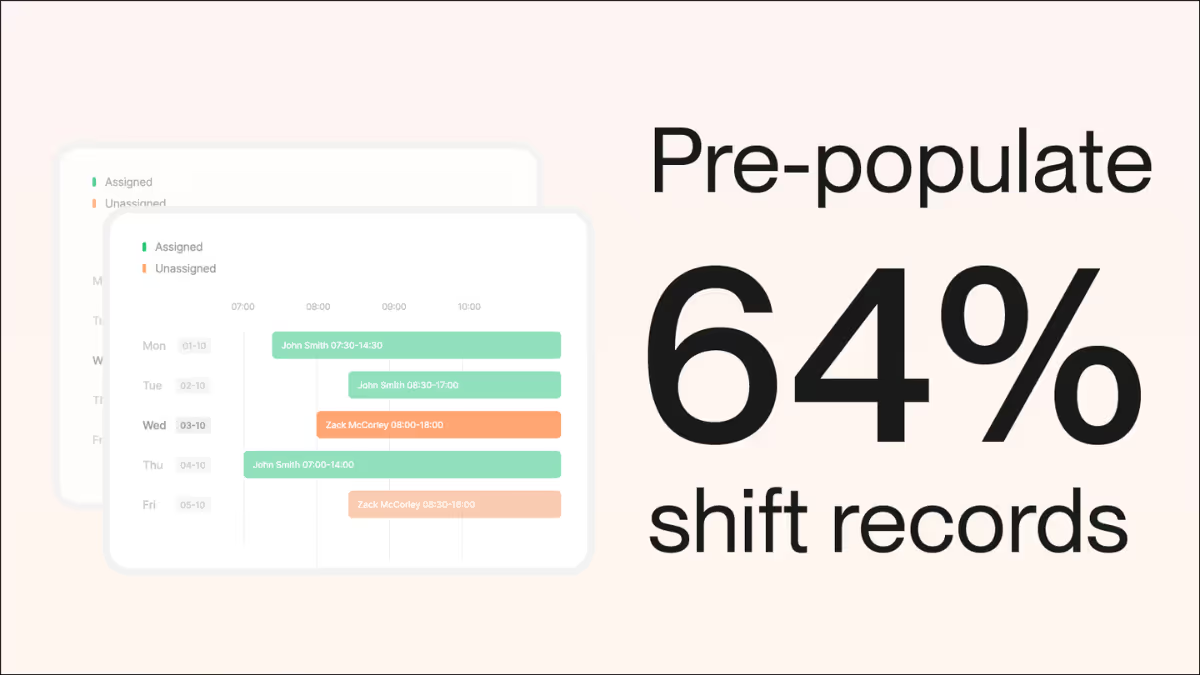

Introduction
Hi, it's Will from Gather. Today I'm going to plan a week of shifts in less than 10 minutes. Ideally five minutes.
Prepare the right information
Before we start, let's have a quick look and make sure we've got our data sources. We've got all the shift information, labour plan and all our activities. It's good to go. We'll start the timer now.
Let's go into shift planner. I'm going to plan a week of work.
Let's say we'll do from Saturday night. I will start at nine o'clock. That's going to be a nine hour shift. Really simple. We'll make it for Emilia. I'm going to have non possession. We'll do that because it's relevant to other sectors, not just rail.
I'll copy it down. Maybe Emilia has got five shifts this week. We're doing it for Monday, Tuesday, Wednesday, and then Thursday. She's doing nights. Let's just say we're going to do eight hours midweek, nine hours on the weekend. Maybe she's working at different locations. At one station for two nights, and then we'll say we'll finish at another station.
Great. We've got all that information there. We can change these shifts if you want. But let's move on and plan for Emilia's team.
Input shift details
Let's go into the detail then. We can put in access information, labour, plant, materials, fatigue assessments if applicable, and any tags. I would normally start at the labour section.
If we click into labour, we've got our supplier. Let's go from this demo company. I want banksman. I want Dean Goldcross. I can check on Dean and put his travel time in. 15 minutes. We can check if Dean has an exceedance straight away. That's good, with no exceedances. I will just scroll back.
We'll start to add a few more people in from our demo company. Obviously Emilia, who's the construction manager. Then we maybe want someone else. Let's say an engineer. Let's choose people that are available. Jamie. Tom looks available there. Let's put Beth in, which is great.
We can put their different start times in. Maybe Emilia starts a little bit earlier, because she's the supervisor. We'll put their travel times in. It could be different for each team member. Okay, no exceedance. That's great.
Automatic fatigue calculator
Let's check what that means. We check for those key parameters around fatigue score. Hours worked. There's no risk putting these people on a night shift. They're way off that 45 threshold. Great.
Now we've got those four people on shift. What I like to do then is to build out that first shift. We've got some plant from here. We've got an NRV. Got two of those. They are starting at 10. Maybe we want a trailer that goes with it. We can pull whatever we need. Put in materials. They're all inside already. That's good.
Fill out activities
Then we'll put some worklogs. So what we're going to do is working at location A326. We're going to do some civils. We're going to do C143 trough installation. The unit of measurement has already pulled through. We're planning to do 50 metres in the shift.
Maybe we're also working at location B3 for civils. Then we can save C119. The biggest one, we'll do 25 metres.
I'll just then change the activity times. We'll start the activity at one o'clock. You will see the date automatically updates. Then we maybe want to start that activity or finish activity at three. And this shift starts a little bit earlier. I think we could do that by two, probably split the team. Okay, you get the idea.
Duplicate and refine
We can go on and plan those individual shifts. Maybe we're doing very similar work with Emilia's team all week. So we'll just add the labour from the first shift. We'll do that. Then we'll check any fatigue exceedances, which I can have a look at in a second.
And then we can also do the same for plant and then worklog. You can always go back and amend these afterwards. No big difference.
Let's have a look what's gone wrong here. So we'll check the exceedances again. Just scroll across. We can see them. There's an issue here with Emilia. The fatigue score is quite high on that shift.
I'd imagine it's because she's now doing a significantly longer shift. We don't want Emilia to be starting earlier. We can go and change that. She should be starting at nine o'clock like everyone else.
Now we will see that there's no issue. Let's just go and fix that other issue, assuming it's the same thing. Move Emilia to nine o'clock as well.
Okay, we've got a few other exceedances. Let's check. Everyone's got quite high fatigue scores here, because they've worked all these nights. Right, we're going to put everyone in hotels. We're going to reduce the travel time massively.
Hopefully we don't have to reduce the shift duration. Let's check. Okay, that worked. We'll put everyone in hotels. We'll add that in a second. We change their travel time accordingly. Great stuff.
Easy double check
Okay, we'll just recheck the shifts. We've got that. Maybe we want to make a change in the worklog. Actually, we're not working at that location today. We're working at C and D. You can put all the detail you want. Just choose from your dropdowns.
Checking again. If you want to put access information, you can do that. We've got access edit. I'll edit for everything. We can put in all this information for when the works commence. Let's plan to start at 10 o'clock every day.
For full duplication we can just copy it. We've set a slightly different working pattern for each shift. So these are all going to start at 23:00. You can see the date updates here. They're all going to still finish at five. And five again.
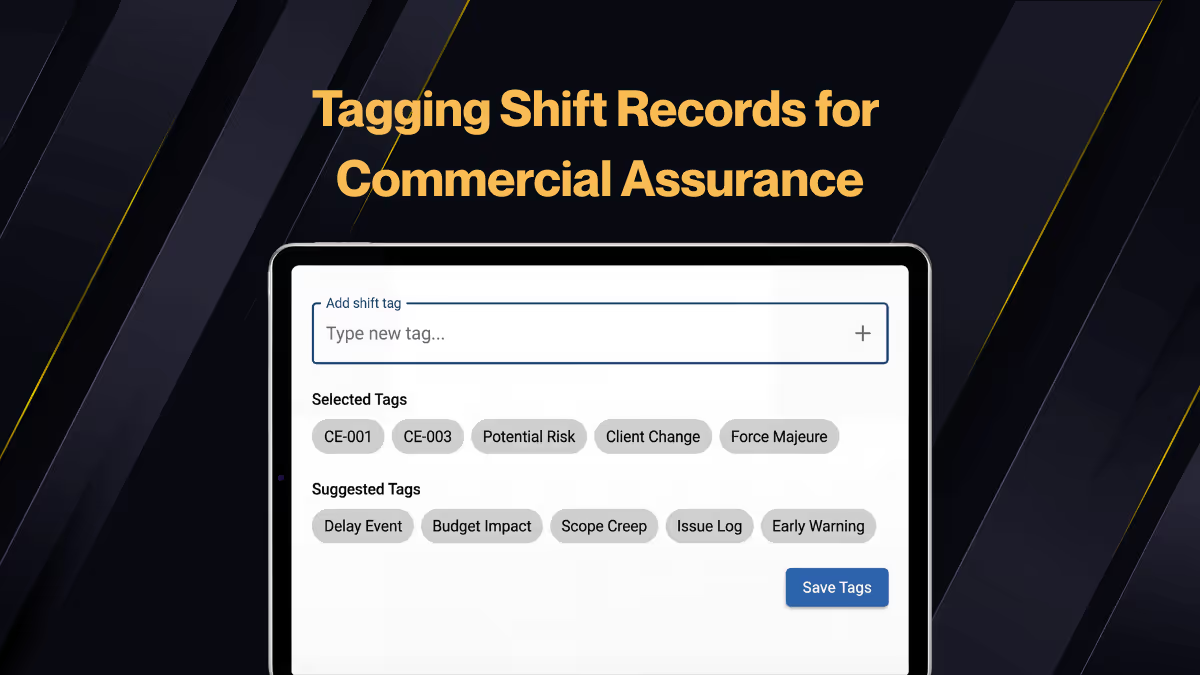
We can put more information if you want. We can put things in like the ELR, the LOR, and all that kind of good stuff. It's entirely up to you. The system saves all that information. We will go back and check again every time we refresh the interface. We can check the labels. We can tag them if you want to. Or we can just leave it as it is.
Leave room for flexibility
We have now planned some very basic shifts. I can then plan them all. But maybe I'm not so sure about the last two shifts. So I'll leave them like that in this planning process. Perhaps Emilia wants to see how the first three shifts pan out.
Plan the shifts. There's no exceedance. No fatigue notifications here. There's nothing wrong. Then we check again. There's no other shifts being created. No issues with the fatigue.
Automatic notifications
As soon as we upload these shifts, Emilia will get an email notification. I'll just filter for shifts here for Emilia. As you can see, she's got those awaiting actuals for that week. They will be available on her mobile device, ready for her to complete.
If we go into a typical record, we can see shift information is partially complete inside. In the weather access, we've got the works commence and works complete with the planned element.
We put the actuals in, all the resources are there as we planned. Then we just need to put in the actuals for the activities as well.
Conclusion
Hope that helps. Let us know how you get on with the shift planner. Thank you.


.webp)